Tmux
What
Tmux is a terminal multiplexer, which allows you manage multiple terminal sessions, windows, and panes within a single terminal window.
In tmux’s hierarchy, a shell could have multiple sessions, a session could have multiple windows, a window could have multiple panes.
We can access specified session, window or pane by session:window.pane if there’s multiple sessions, windows or panes.
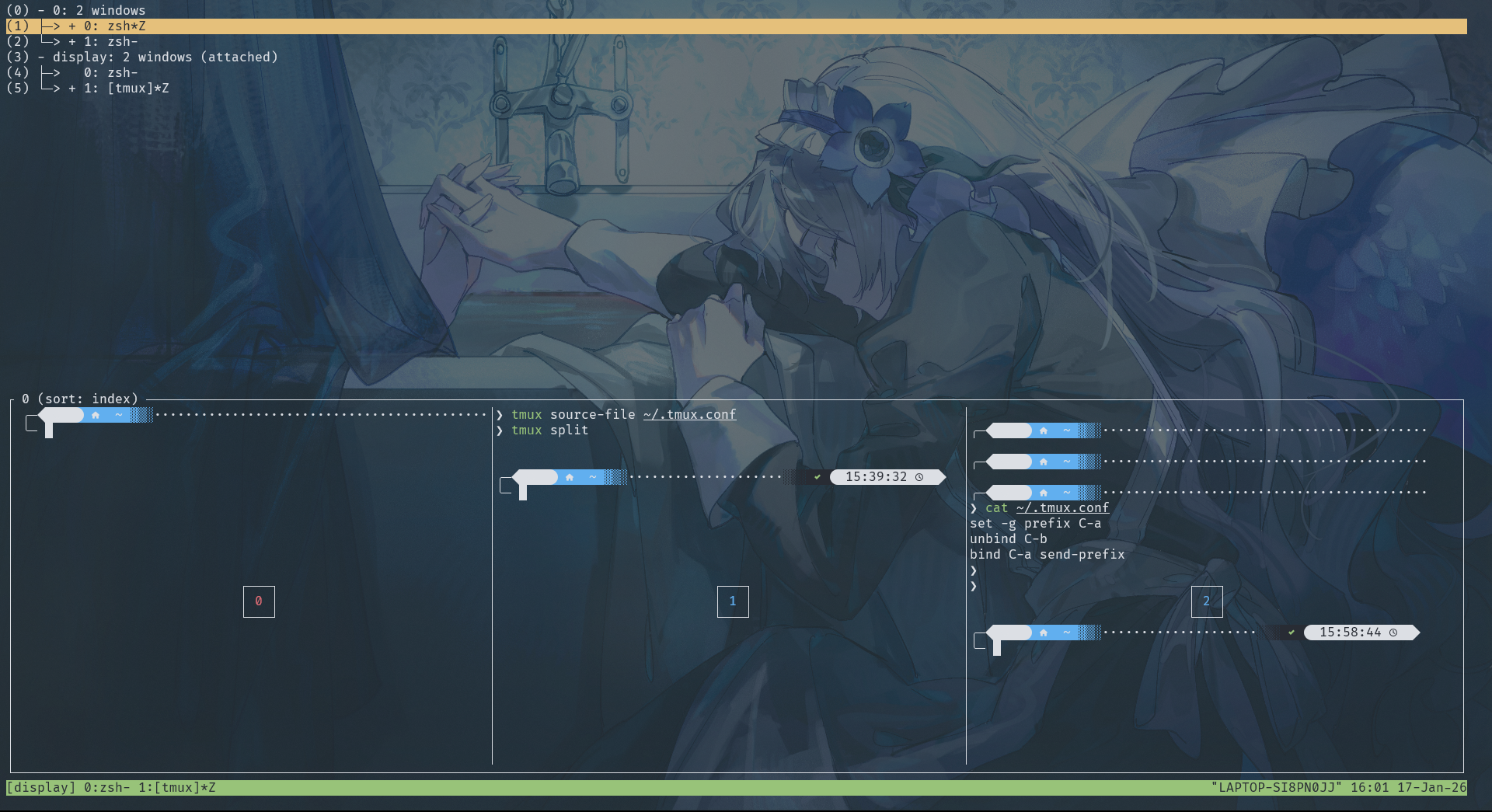
As this example, 0 and display is two sessions, which have two windows respectively. 0:0 has three panes, which can be accessed by 0:0.0 ~ 0:0.2.
Why
- Run multiple shells in one terminal.
- Keep program running even if SSH is disconnected!
flowchart TD
    subgraph NoTmux["Without tmux"]
        A[SSH Client] <--> B[sshd]
        B --> C[shell]
        C --> D[program]
    end

    subgraph Tmux["With tmux"]
        E[SSH Client] <--> F[sshd]
        F --> G[shell]
        G --> H[tmux client]

        subgraph "tmux server (on server)"
            I[shell]
            I --> J[program]
        end
    end

    style NoTmux fill:#fef3c7,stroke:#f59e0b,stroke-width:2px
    style Tmux fill:#dbeafe,stroke:#3b82f6,stroke-width:2px
- Without tmux: Shell pty will disappear once SSH is disconnected, then program will be killed.
- With tmux: Only tmux client will die when SSH is disconnected but tmux server is still run in the server so that the program will keep running.
There are some useful commands and shortcuts used frequently. For more details, man and Google is your friends!
Or, check this!
CLI
Create && Attach
tmux,tmux new: Create a anonymous session (0)tmux new -s work: Create a session named “work”tmux attach,tmux a,tmux at: Attach to the latest session.tmux attach -t work: Attach specified session “work”tmux ls: List all sessionstmux list-windows -t buildtmux list-panes -t build:0
tmux new -s build -d: Create a session backgroundtmux send -t build 'make' Enter: Enter “make” to the session “build”, which is simulate keyboard and not dependent shell attach. This could be used for automation of background tasks.
Kill
tmux kill-session -t work: Kill specified session “work”tmux kill-server: Kill all sessions
Shortcuts
By default, prefix is Ctrl + b which is a bit uncomfortable…
However, we could edit ~/.tmux.conf to customize.
set -g prefix C-a
unbind C-b
bind C-a send-prefix
Pane
| Operation | Shortcut |
|---|---|
| Split pane vertically | Prefix % |
| Split pane horizontally | Prefix “ |
| Close pane | Prefix x |
| Navigate between panes | Prefix ← / ↑ / ↓ / → |
| Resize pane | Prefix Ctrl+← / Ctrl+→ / Ctrl+↑ / Ctrl+↓ |
| Show pane numbers | Prefix q |
Window
| Operation | Shortcut |
|---|---|
| New window | Prefix c |
| Rename window | Prefix , |
| Switch to next window | Prefix n |
| Switch to previous window | Prefix p |
| Switch to specific window | Prefix 0–9 |
| List all windows | Prefix w |
| Close window | exit or Prefix & |
Session
| Operation | Shortcut |
|---|---|
| Detach from session | Prefix d |
| Switch between sessions | Prefix s |
| Rename session | Prefix $ |
Command Mode
Prefix :
Then we can enter tmux command (tmux is not needed), such as:
New-windowSplit-window -hRename-session workList-keysList-windowsList-panes- And so on.
More Customization
To do customization, just edit ~/.tmux.conf.
Rule
bind <key> <command>: Press key after prefix.bind -n <key> <command>: Take effect once press key without need of pressing prefix
Navigate Between Panes
bind -n C-h select-pane -L
bind -n C-l select-pane -R
bind -n C-j select-pane -D
bind -n C-k select-pane -U
Split Windows
bind | split-window -h
bind - split-window -v
Make it a more convenient to use!
Vim mode
setw -g mode-keys viActivity Alerts
setw -g monitor-activity on
set -g visual-activity on
Appearance
set -g status-justify centreCenter the window list.